
Your Shopping Cart


Smart Plug Cheap: 5 Affordable Smart Plugs You Can Trust
sunshine.universal.g@gmail.comEver walked into a room and realized the lamp you love is still stuck on, wasting electricity and your patience?
You’re not alone – the hunt for a smart plug that doesn’t break the bank feels like searching for a needle in a haystack of pricey gadgets.
But what if I told you that a reliable, feature‑rich smart plug can be found for the price of a coffee?
In this guide we’ll peel back the hype, point out the tiny details that separate a decent cheap model from a total let‑down, and give you a quick cheat sheet so you can plug in confidence without emptying your wallet.
Think about the last time you tried a budget smart plug that kept dropping Wi‑Fi or refused to work with your voice assistant – frustrating, right?
We’ll walk through three real‑world scenarios: lighting a nightstand lamp for bedtime reading, automating a coffee maker so your brew is ready when you are, and protecting a holiday‑season heater from overheating – all without splurging.
Along the way I’ll sprinkle practical tips – like checking for a reliable app, confirming Alexa or Google Home compatibility, and verifying energy‑monitoring features that actually work, not just sit in the spec sheet.
Sound familiar? That moment when you think you’ve found a bargain, only to discover it’s more trouble than it’s worth, is what we’re trying to avoid.
By the end of this article you’ll know exactly which cheap smart plugs deliver solid performance, how to set them up in minutes, and which red flags to watch out for before you click ‘Add to Cart’.
Ready to stop guessing and start controlling your home with confidence? Let’s dive in and uncover the best smart plug cheap options that actually make life easier.
Grab a notebook, because you’ll want to jot down the top picks and quick setup steps we recommend.
TL;DR
Tired of overpaying for flaky gadgets? This guide pinpoints smart plug cheap models that work—night‑stand lamps, coffee makers, and a heater—while flagging pitfalls before you hit ‘Add to Cart’.
We’ll walk you through setup steps, app tips, and three scenarios so you can plug in confidence without emptying your wallet.
List Item 1: Budget‑Friendly Smart Plug Basics
Ever stared at a night‑stand lamp and thought, “I wish I could turn this off without getting out of bed?” Yeah, we’ve all been there. The good news? A cheap smart plug can make that wish a reality without draining your wallet.
First, let’s get clear on what “budget‑friendly” really means. It isn’t just a low price tag; it’s a plug that does the core job—on/off control, scheduling, and voice integration—reliably. Anything extra is a nice bonus, not a must.
Core features you can’t skip
1. Wi‑Fi (2.4 GHz) only. Most cheap plugs stick to Wi‑Fi because it avoids the extra hub cost of Zigbee or Thread. Just make sure your router still broadcasts 2.4 GHz; otherwise the plug won’t see you.
2. App simplicity. A clutter‑free companion app means you spend seconds, not minutes, getting it online. The TP‑Link Kasa mini model is praised for a “straightforward” setup that took under a minute in testing(NY Times Wirecutter).
3. Voice‑assistant compatibility. Alexa and Google Assistant are the most common. If you’re an Apple Home user, double‑check for Matter support—many cheap models skip it.
Why the TP‑Link EP10 Mini is a standout
When I dug into the cheap‑plug market, the EP10 kept popping up. It’s the smallest “mini” you can fit behind a nightstand, measuring just over 2 inches tall. Its size alone saves you from the awkward bulge that blocks the second outlet on many bulkier plugs.
The plug covers the essentials: a timer, sunrise/sunset scheduling, and an “Away Mode” that randomly toggles power to make it look like someone’s home. It even tracks run‑time in hours and minutes—good enough for most of us who aren’t obsessively counting kilowatt‑hours(NY Times Wirecutter). The only real downside? No Apple Home compatibility, so if that’s your go‑to, you might need to look elsewhere.
Quick checklist before you click “Add to Cart”
- Does the plug work on 2.4 GHz Wi‑Fi?
- Is the companion app intuitive (no 20‑step wizardry)?
- Can it talk to the voice assistant you use daily?
- Is the physical size small enough for your intended outlet?
If you can answer “yes” to all four, you’ve probably found a solid budget pick.
Real‑world test: the nightstand lamp
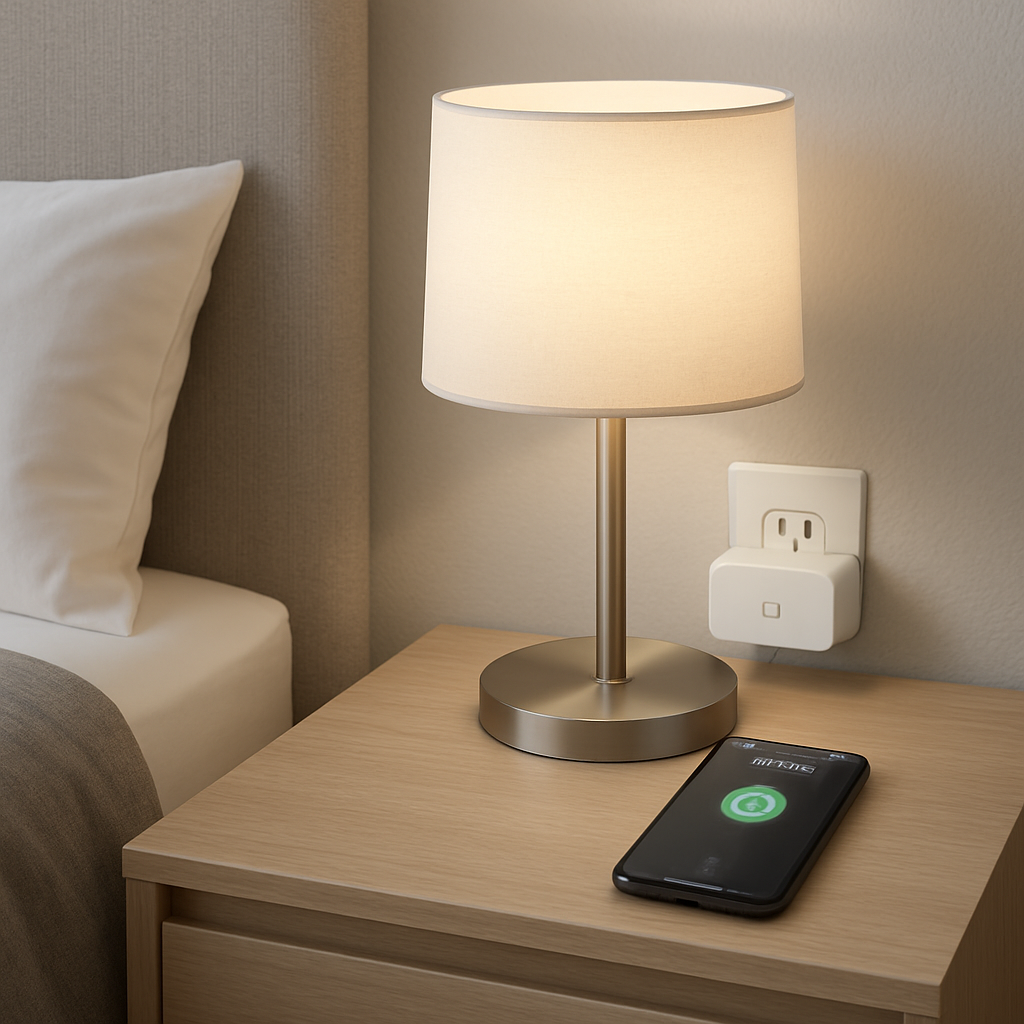
Here’s a quick story: I slipped an EP10 into the outlet behind my bedside lamp. The app asked for the Wi‑Fi password, connected in 30 seconds, and I was able to rename the plug “Bedside Light.” I set a sunset schedule, so the lamp dims automatically at dusk. The next morning, I said, “Hey Google, turn off Bedside Light,” and it obeyed instantly. No lag, no hiccups. That’s the kind of frictionless experience you want for $35‑$40.
And guess what? Because the plug is cheap, you can grab a two‑pack and put one in the living‑room for a lamp and another in the kitchen for the coffee maker. No need to buy a whole power strip if you only need one or two outlets.
Bonus tip: Use the video to see it in action
Sometimes words aren’t enough. Check out this short walkthrough that shows the EP10’s setup and voice‑control demo:
Seeing the plug light up and respond to a voice command can seal the deal.
Finally, a little heads‑up: cheap plugs usually don’t include surge protection, so keep them away from high‑draw devices like space heaters. They’re perfect for lamps, coffee makers, fans, and any low‑power gadget you want to automate.
Ready to stop juggling cords and start controlling them with a tap or a phrase? Grab a budget‑friendly plug, follow the checklist, and you’ll be plugging in confidence in no time.
List Item 2: Top 5 Cheapest Smart Plugs Reviewed
Alright, you’ve seen why a basic plug is worth the money, now let’s dive into the actual budget heroes. Below are the five cheapest smart plugs that actually work, so you can stop guessing and start scheduling.
Does the idea of a $10‑ish gadget that can turn your lamp on at sunset feel too good to be true? Trust me, it isn’t – the market is packed with solid options that won’t bleed your wallet.
1. TP‑Link Kasa Smart Wi‑Fi Plug Mini
This little guy is a perennial favorite because it does exactly what you need: on/off control, scheduling, and Alexa or Google Assistant support. The app is dead‑simple – you’re in, you name the plug, you set a timer, and you’re done. At around $15, it’s one of the most affordable on CNET’s shortlistCNET’s best smart plugs roundup. Its compact 2‑inch profile means it won’t block the second socket, perfect for cramped night‑stand outlets.
2. Amazon Smart Plug
If you live in the Alexa ecosystem, this plug is basically plug‑and‑play. No extra app to download – you manage it right from the Alexa app, and it automatically reconnects if the Wi‑Fi hiccups. Prices hover just under $20, and the design is ultra‑slim, so you can still use the adjacent outlet for a lamp or charger.
3. HBN Dual Smart Plug
Need two outlets without buying a separate power strip? The HBN offers two independently controllable sockets in a single housing. Each outlet can have its own schedule, so you could run a fan in the summer and a holiday light string in December without any extra hardware. It’s a bit wider than a single plug but still fits most standard outlets, and you can snag it for roughly $25.
4. Emporia 15W Smart Plug
Emporia shines when you care about energy monitoring on a budget. It shows real‑time usage and lets you set alerts if a device spikes. The app is a little more detailed than the Kasa, but the added insight is worth the extra few dollars – usually around $18. It works with Alexa and Google, though HomeKit is still missing.
5. Leviton D215P‑2RW Smart Plug
Leviton may sound premium, but this model drops into the cheap‑range thanks to a modest price tag (about $20) and a sleek, rectangular design that blends into any wall plate. It supports Alexa, Google, and, importantly, Apple HomeKit via Matter – a rare combo for a sub‑$25 plug. The physical button on the side also lets you toggle power without pulling out your phone.
So, which of these fits your setup? Think about the devices you want to automate, the voice assistant you already use, and whether you need energy tracking or a second outlet. The right cheap plug can make a whole room feel smarter without a hefty price tag.
| Plug | Approx. Price | Size / Form Factor | Voice Assistant Support |
|---|---|---|---|
| TP‑Link Kasa Mini | ~$15 | 2‑inches tall, single outlet | Alexa, Google |
| Amazon Smart Plug | ~$20 | Ultra‑slim, single outlet | Alexa (native) |
| HBN Dual Plug | ~$25 | Two outlets, slightly wider | Alexa, Google |
| Emporia 15W | ~$18 | Compact, single outlet | Alexa, Google |
| Leviton D215P‑2RW | ~$20 | Rectangular, single outlet | Alexa, Google, HomeKit (Matter) |
List Item 3: How to Choose a Cheap Smart Plug
Picking a cheap smart plug is a lot like choosing a roommate – you need reliability, low‑maintenance, and no surprise parties at 3 am. The good news? You don’t have to sign a lease; a few thoughtful questions can keep you from buying a gadget that ends up on the junk drawer.
1. Does it speak the language of your Wi‑Fi?
Most budget plugs only understand 2.4 GHz Wi‑Fi. If your phone is glued to a 5 GHz network during setup, you’ll see a blank screen and a frozen phone, just like the Wyze Plug owner who had to “force” their phone onto 2.4 GHz before the plug finally listenedas described on the Wyze forum. The workaround is simple: make sure your device is on the 2.4 GHz band or temporarily switch your router’s broadcast.
2. How easy is the app?
A cheap plug should get you online in under a minute, not in a 20‑step wizard that feels like a tax form. Look for a clean interface that lets you rename the plug, set a schedule, and toggle power with one tap. If the app feels cluttered, you’ll spend more time fighting the software than enjoying the automation.
3. Which voice assistants does it actually support?
Check the official spec sheet for Alexa, Google Assistant, and, if you’re an Apple fan, Matter‑enabled HomeKit. A plug that only works with Alexa might be fine for an Echo‑only household, but it becomes a headache if you later add a Google Nest speaker.
4. Do you need extra sockets or energy monitoring?
Some cheap models, like the dual‑outlet HBN, give you two controllable ports without the cost of a power strip. Others, such as the Emporia 15W, add real‑time energy readouts that can alert you to a rogue device. Decide whether you value a second outlet, power‑usage data, or just a simple on/off switch.
5. Will it survive where you plan to use it?
Indoor plugs are usually fine for lamps and chargers, but outdoor or damp locations need a rating that can handle the elements. The Cync Outdoor Smart Plug, for example, is marketed for patio lights and holiday decorations, letting you control a fountain or string lights from inside your house according to the product descriptionaccording to the product description. If you’re planning to automate a garden fountain, pick a plug that’s explicitly “outdoor‑rated.”
6. Size matters (but not too much)
A bulky plug can block the neighboring socket, forcing you to buy an extension cord you didn’t need. Measure the depth of the outlet and compare it to the plug’s profile—most 2‑inch tall mini plugs slide in without a fuss, while dual‑outlet units are a bit wider but still manageable.
7. Quick checklist before you click “Add to Cart”
- 2.4 GHz Wi‑Fi compatibility (avoid the 5 GHz trap).
- One‑minute app setup.
- Voice‑assistant support that matches your ecosystem.
- Needed features: extra outlet, energy monitoring, outdoor rating.
- Compact form factor that won’t block the next socket.
Take a moment now to scan the specs of any plug you’re eyeing. If it ticks all the boxes above, you’ve found a smart plug cheap enough to feel like a win and solid enough to actually work.
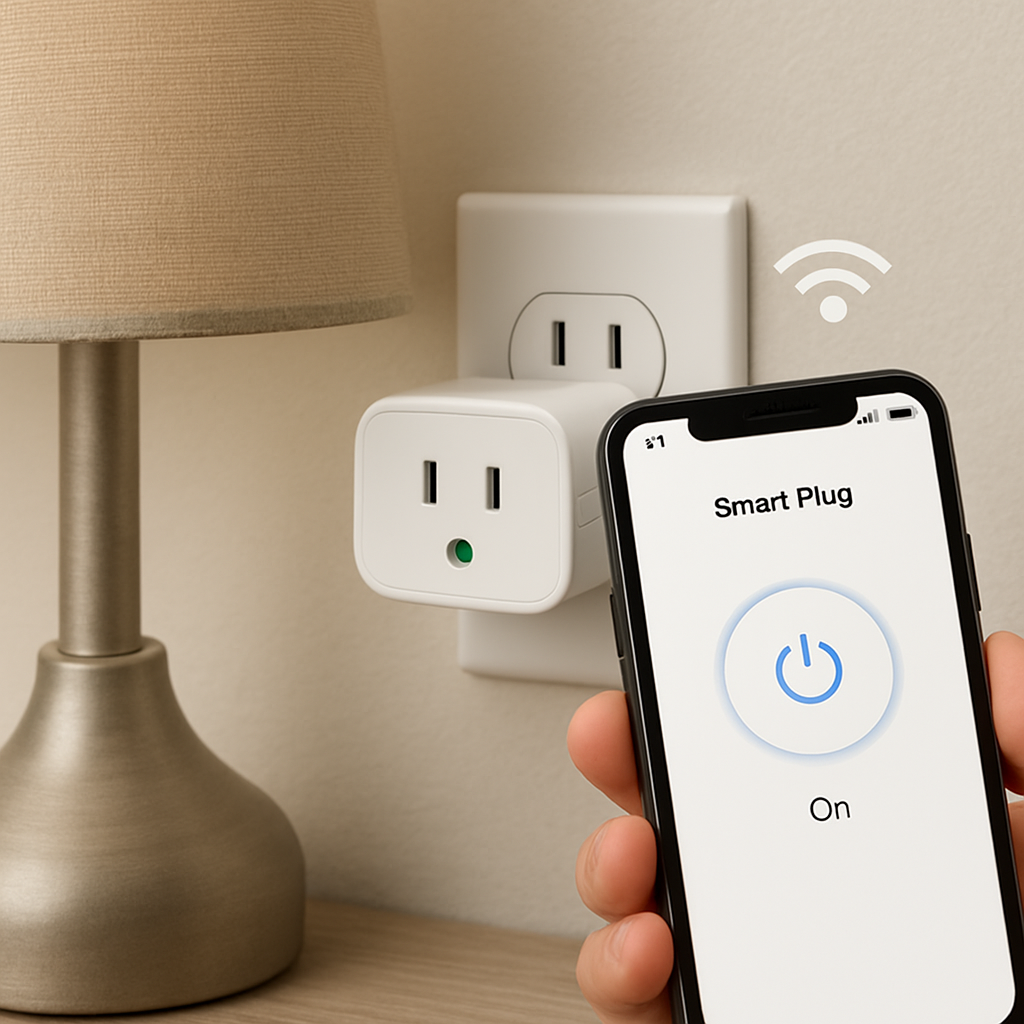
Remember, the cheapest option isn’t always the worst—just make sure it meets these basics and you’ll avoid the frustration of a plug that disappears from your app or refuses to obey a voice command.
List Item 4: Installing and Setting Up Your Cheap Smart Plug
Alright, you’ve finally picked a smart plug cheap enough to feel like a win. The next question is: how do you actually get it talking to your phone without pulling your hair out?
1. Find the right spot and plug it in
First, locate the outlet you want to automate. If it’s behind a lamp or a coffee maker, make sure there’s enough clearance – the plug should sit flush, not hang off the edge.
Snap the plug into the socket, then plug your device into the smart plug’s outlet. You’ll see a tiny LED blink; that’s the plug saying “I’m alive and ready.”
2. Download the companion app (if you haven’t already)
Most budget models use a single‑purpose app – think Kasa, Smart Life, or the Amazon app. Search for the exact name on your app store, install it, and open it.
Don’t worry, the onboarding screen is usually just a “Get Started” button. Tap it, and you’ll be prompted to create a free account or log in with Google/Facebook.
3. Connect to your 2.4 GHz Wi‑Fi
This is where a lot of cheap plugs trip you up. They only speak 2.4 GHz, so make sure your phone is on that band during setup. If you’re on a 5 GHz network, toggle to the 2.4 GHz SSID in your phone’s Wi‑Fi settings.
In the app, hit “Add Device” and select “Smart Plug.” The plug will broadcast a temporary network – you’ll see something like “SmartPlug_XXXX.” Connect to it, then let the app ask for your home Wi‑Fi credentials.
Once you hit “Save,” the plug will reboot and join your router. The LED should go solid, indicating it’s online.
4. Name it something you’ll actually remember
Rename “Plug 1” to “Coffee Maker” or “Bedroom Lamp.” A clear name makes voice commands feel natural. You can also assign it to a room in the app – that way Alexa or Google Assistant can say “Turn off the bedroom lights” instead of “turn off plug 3.”
5. Set up a basic schedule
Open the scheduling tab and pick a “Turn On” time for your morning brew, or a “Turn Off” for your night‑stand lamp at midnight. Most cheap plugs let you create up to three daily events without a subscription.
Tip: use “Sunrise” and “Sunset” presets if your app supports them – they automatically adjust for the seasons, so you never have to tweak the time again.
6. Test the voice assistant
Open your Alexa or Google Home app, run a “Discover Devices” scan, and you should see the new plug appear under the room you assigned.
Now say, “Hey Google, turn on the coffee maker,” and watch it fire up. If it doesn’t respond, double‑check that the plug is still showing as “online” in the companion app.
7. Quick troubleshooting cheat sheet
- LED flashing? Your plug lost Wi‑Fi – move it closer to the router.
- App says “offline” after a firmware update? Restart the plug by unplugging for five seconds.
- Voice command ignored? Make sure the name you used matches exactly in the voice assistant.
8. Bonus: Use the YouTube walkthrough for visual help
If you’re a visual learner, there’s a short video that walks through each step on a budget plug – you can follow along while you’re setting yours up on this YouTube guide.
And that’s it. In under ten minutes you’ve turned a plain outlet into a programmable part of your smart home, all without splurging on a hub or a pricey power strip.
Now that it’s up and running, experiment with timers, away‑mode, or even energy‑monitoring (if your plug offers it). The more you play, the more you’ll appreciate how a cheap smart plug can save you time, money, and a few extra clicks each day.
List Item 5: Troubleshooting Common Issues with Cheap Smart Plugs
We’ve all been there: you set up a cheap smart plug, the lamp obeys, and then—boom—something stops working and you’re left staring at a dead outlet. Before you toss the plug in the trash, let’s walk through the most common hiccups and how to fix them without calling tech support.
1. Wi‑Fi drops out when you’re away
One of the biggest grumbles on forums is that the plug “just disappears” from the app when you’re not home. A user on a tech‑talk board described how their Feit Electric plugs stayed on during a vacation because the Wi‑Fi connection never re‑established, forcing them to unplug and replug the device when they got back a user reported that cheap smart plugs can lose Wi‑Fi while you’re away. The good news is that a few simple steps can often bring the plug back online.
- Make sure your router’s 2.4 GHz band is still broadcasting. Cheap plugs don’t understand 5 GHz.
- Place the plug within a few feet of the router for the first 5‑10 minutes after a reboot.
- Power‑cycle the plug: unplug, wait 5 seconds, then plug back in. Most units will auto‑reconnect.
- If the problem recurs, consider a small “reset timer” that cuts power once a day, giving the plug a fresh start.
Does this sound familiar? If you’re away often, a cheap digital timer behind the plug can act like a watchdog, forcing a reconnection without you lifting a finger.
2. The app says “offline” or won’t toggle power
When the app shows a gray icon, the plug is either out of Wi‑Fi range or stuck in a firmware limbo. First, open the companion app and hit the refresh button. If it stays offline, try these fixes:
- Check that the outlet itself is powered—some older homes have switched sockets that need to be on.
- Restart your router; a quick reboot can clear stale DHCP leases.
- Update the plug’s firmware via the app’s settings menu.
- Factory reset: press and hold the side button for 10 seconds, then redo the onboarding.
After a reset, rename the plug with a simple, voice‑assistant‑friendly name—no special characters. A clear name like “Coffee Maker” avoids mis‑recognition later.
3. LED flickers or stays solid when it shouldn’t
Most cheap plugs use a blinking LED to signal “searching for Wi‑Fi.” If it stays solid, the unit thinks it’s online but might be stuck in a loop. Try these steps:
- Hold the reset button for 5 seconds to force a soft reset; the LED should flash twice.
- If the LED continues to blink after you’ve re‑entered your network credentials, double‑check you’re on the 2.4 GHz SSID.
- Some models let you disable the LED in the app—use this if the light is distracting.
Quick tip: a solid amber usually means the plug is powered but not connected; a solid blue means it’s online.
4. Schedules or energy‑monitoring don’t fire
Scheduling glitches often stem from a mismatched time zone or a missed “save” tap. Open the schedule tab, verify your local time zone, and hit “apply” before exiting. If you use energy monitoring, make sure the plug’s firmware supports real‑time reporting—some cheap models only push data once per hour.
- Re‑sync the clock by pulling the plug for 10 seconds, then plug back in.
- Delete and recreate a problematic schedule; the app sometimes caches a corrupted entry.
Does this feel like a lot? Think of it as a quick checklist you can run the first time you notice a missed trigger.
5. Overload or physical fit issues
Cheap plugs aren’t built for heavy‑duty appliances. Plugging a space heater or a high‑wattage coffee maker can trip the built‑in fuse, leaving the LED dark and the device dead. Keep these limits in mind:
- Most budget plugs handle up to 1800 W (≈15 A) on a 120 V circuit—check the spec sheet.
- If the outlet feels warm after a few minutes, unplug the device and consider a higher‑rated model.
- Make sure the plug’s body doesn’t block the adjacent socket; a tiny spacer can help.
Now you’ve got a toolbox of fixes for the most common annoyances. Before you give up on a cheap smart plug, run through this list and you’ll probably get it humming again in minutes.
And remember, a little patience and a systematic approach usually turn a frustrating outage into a learning moment—plus you’ll feel a lot smarter about your smart‑home setup.
Additional Considerations: Security and Compatibility
We’ve gotten the plug online and it’s doing its thing, but have you ever stopped to wonder what’s happening behind the scenes? With a smart plug cheap you’re essentially handing a tiny computer your Wi‑Fi password, so security and compatibility matter more than you might think.
Is the firmware trustworthy?
Most budget plugs ship with a basic firmware that gets occasional updates. If the manufacturer offers an easy “Check for Updates” button in the app, that’s a good sign. Otherwise, treat the device like a disposable gadget – don’t connect it to critical appliances like your heater or home office router.
Wi‑Fi band and router quirks
Cheap models only speak 2.4 GHz. If your network is a mixed 2.4 / 5 GHz environment, make sure the SSID you’re feeding the plug is clearly labeled. A common pitfall is the plug disappearing when you switch the router to “Smart Connect” mode; the device simply can’t see the 5 GHz slice.
Encryption and data privacy
Look for plugs that advertise WPA2‑PSK encryption. Anything that mentions “open Wi‑Fi” or “no password required” should be avoided. Even if the traffic is local, a weak security setup can let a neighbor sniff your on/off commands and infer when you’re home.
Voice‑assistant compatibility quirks
Alexa, Google Assistant, and the newer Matter standard each speak a slightly different language. If you rely on voice, double‑check that the plug you’re eye‑balling shows native support for your chosen assistant. Some cheap plugs claim “works with Alexa” but actually need a third‑party skill that can be flaky.
Physical compatibility checklist
- Make sure the plug’s plug type matches your outlet (US NEMA 5‑15 vs EU Schuko).
- Check the depth – a bulky plug can block the adjacent socket, forcing you to use an extension cord.
- Verify the maximum wattage rating; most cheap plugs sit around 1800 W, enough for lamps and coffee makers but not for space heaters.
So, what’s the takeaway? Treat a smart plug cheap like a guest you’d invite for a short stay: keep it on the same Wi‑Fi band, update its firmware when you can, and don’t trust it with high‑risk devices. A quick pre‑install checklist can save you hours of troubleshooting later.
Give yourself a minute to run through these security and compatibility steps before you hit “Add to Cart.” You’ll end up with a plug that’s not just affordable, but also reliable enough to actually make your life easier.
Conclusion
So, you’ve made it through the whole checklist, the product reviews, and the setup walk‑through.
If a smart plug cheap enough to fit your budget can reliably turn a bedside lamp on at sunset, it can also save you a few extra clicks when the coffee maker fires up in the morning.
The biggest takeaways? Keep the plug on a 2.4 GHz network, pick a model that talks to your voice assistant, and double‑check the wattage rating before you hook up anything power‑hungry.
A quick pre‑install checklist – Wi‑Fi band, app simplicity, voice‑assistant support, size, and power rating – can shave minutes off troubleshooting later.
Remember, you don’t need a fancy hub to get the job done – the right cheap plug does the heavy lifting for everyday gadgets.
So, what’s the next step? Grab the plug that checked all the boxes, run the one‑minute setup, and give yourself a quick test – say “Hey Google, turn off the lamp” and watch it obey.
If it works, you’ve just turned a cheap gadget into a confidence boost for the rest of your smart‑home journey – and you didn’t have to break the bank.
Enjoy the simplicity, and feel free to come back whenever you need to expand your plug collection – the basics stay the same, no matter how many devices you add.
FAQ
What makes a smart plug cheap still reliable?
Even a budget‑friendly plug can be reliable if it sticks to the basics: 2.4 GHz Wi‑Fi, a simple companion app, and solid voice‑assistant integration. Look for a single‑outlet design that won’t block the next socket and a wattage rating of at least 1800 W for lamps, coffee makers, or fans. When those three boxes are checked, you’re unlikely to see the “offline” ghosts that cheap knock‑offs sometimes throw at you.
Can I use a cheap smart plug with both Alexa and Google Assistant?
Most “smart plug cheap” models advertise dual compatibility, but it’s worth confirming in the spec sheet before you buy. The plug needs to register with each ecosystem separately – you’ll add it in the Alexa app, then run a “Discover devices” scan in the Google Home app. Once both assistants see the same device name, you can say “Hey Google, turn off the bedroom lamp” or “Alexa, switch on the coffee maker” without any extra steps.
How do I know if the plug’s power rating is enough for my device?
Check the label on the plug or the product page for a maximum wattage or amperage rating. For most household gadgets – lamps, chargers, small fans – 1800 W (about 15 A on a 120 V circuit) is more than enough. If you plan to control a space heater, a high‑wattage hair dryer, or a microwave, you’ll need a higher‑rated, often pricier, model because cheap plugs can trip their internal fuse and shut down.
What should I do if my cheap smart plug keeps dropping Wi‑Fi?
The most common culprit is the 5 GHz band. Cheap plugs only speak 2.4 GHz, so make sure your phone and the plug are on that network during setup. If the signal is weak, move the router a few feet closer or use a small Wi‑Fi extender. A quick power‑cycle – unplug, wait five seconds, plug back in – usually forces a fresh reconnect and clears the hiccup.
Is it safe to leave a cheap smart plug on a nightstand next to my phone charger?
Yes, as long as the combined load stays under the plug’s wattage limit. Most chargers draw under 10 W, and a bedside lamp might be 5‑10 W, so you’re well within the safe zone. Just avoid stacking a high‑draw device like a space heater on the same outlet, and keep the plug away from liquids to prevent any accidental short circuits.
Do cheap smart plugs support energy monitoring?
Only a handful of budget models include real‑time usage stats – the Emporia 15 W and a few others. If energy tracking is a must‑have, look for that feature in the product description; otherwise, the plug will still turn devices on and off, but you won’t get kilowatt‑hour reports. Even without monitoring, you can still set schedules that cut wasteful standby power.
How often should I update the firmware on my smart plug?
Treat firmware updates like app updates on your phone – check the companion app at least once a month. Manufacturers push fixes for Wi‑Fi stability, security patches, and occasional new voice‑assistant commands. Updating is usually a one‑tap process: open the app, hit “Check for updates,” and let the plug reboot. Skipping updates can leave you exposed to known vulnerabilities, even on a cheap device.
